
Location Permission
Can’t share your location with WRK? On iPhone it’s a quick two-part setup: first let your browser use location, then allow this website.
Phase 1 — Enable location for your browser
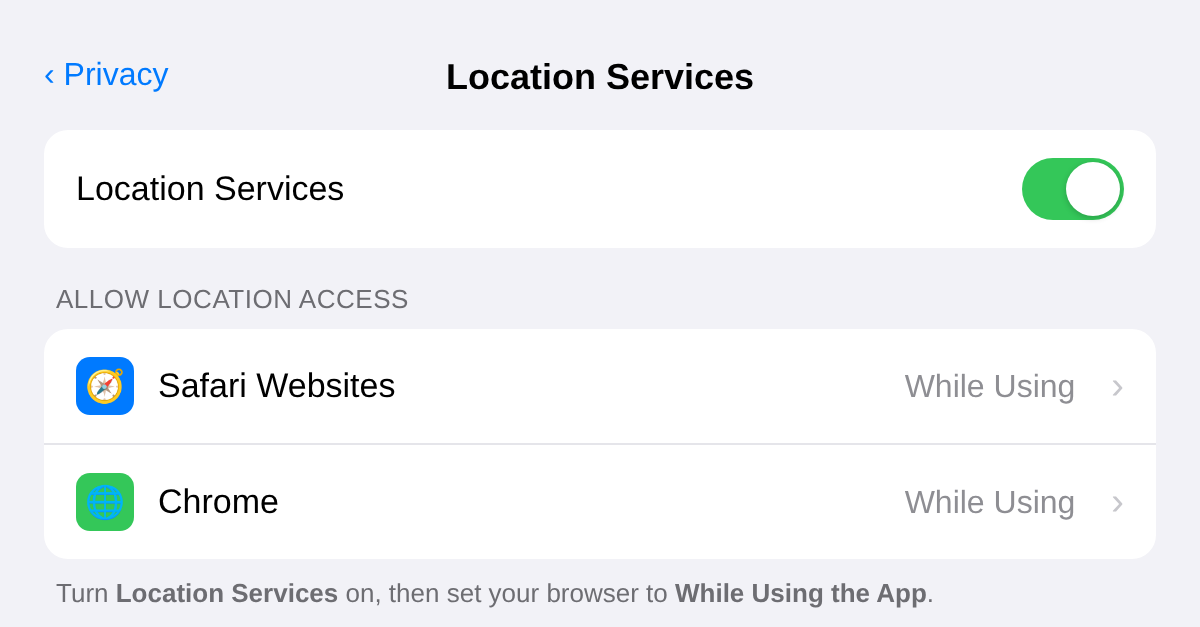
Your browser needs permission to use your location before any website can request it.
- Open your iPhone Settings.
- Tap Privacy & Security → Location Services.
- Make sure Location Services is turned On.
- Scroll down and tap your browser (e.g. Safari or Chrome).
- Set access to While Using the App.
Phase 2 — Allow this website
Once your browser has access, choose how websites may read your location.
Safari
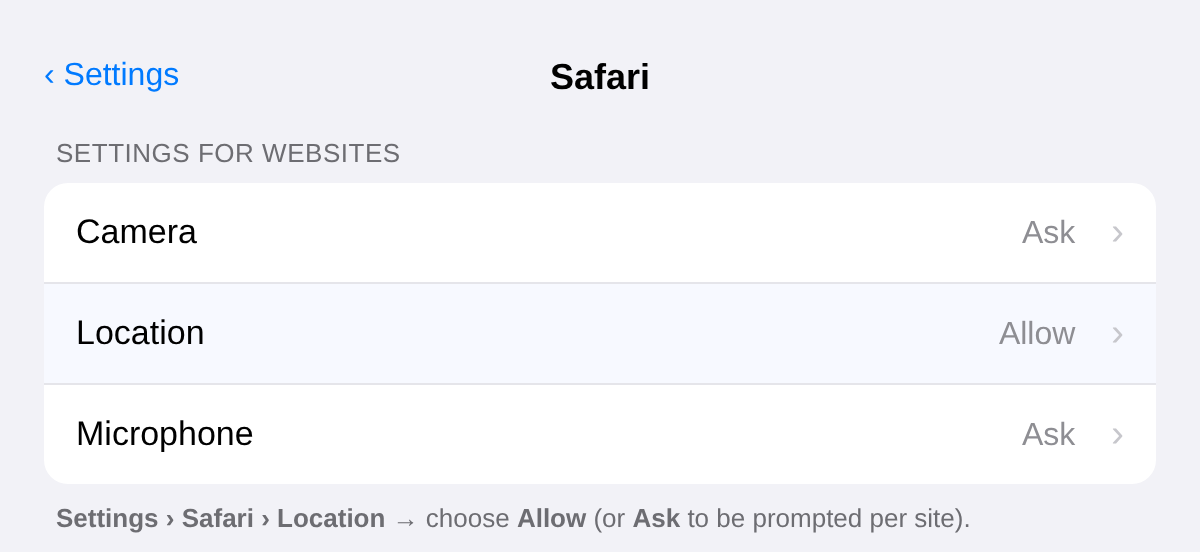
- Go to Settings → Safari.
- Scroll down and tap Location.
- Choose Allow (grant all sites) or Ask (prompt per site).
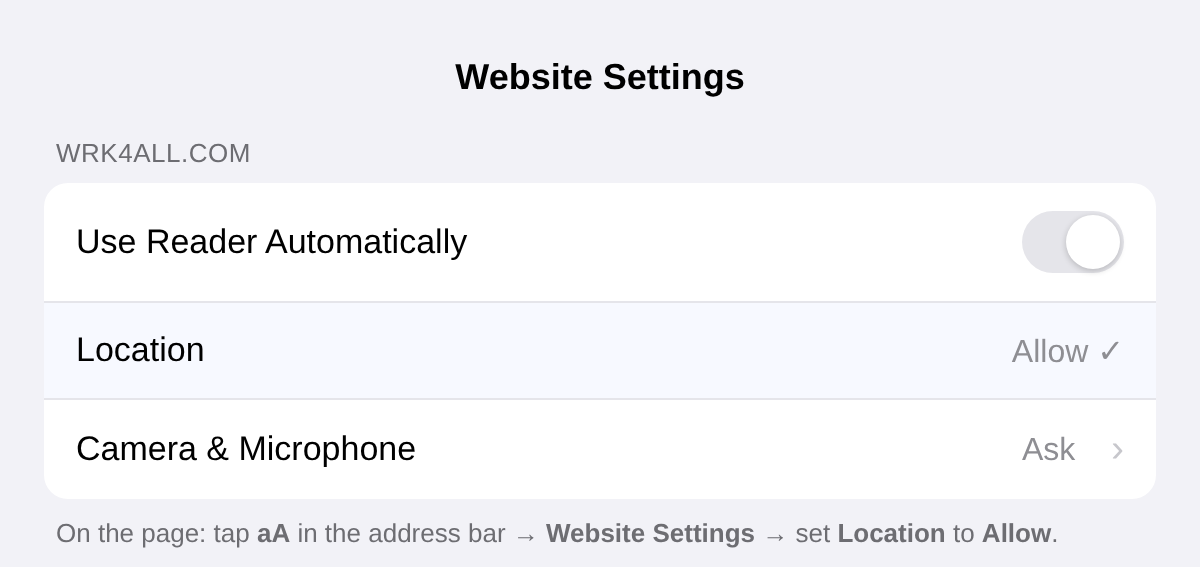
On the fly: while on the website, tap the aA (or page-settings) icon next to the address bar → Website Settings → set Location to Allow.
Chrome
- Chrome asks per site — when the prompt appears, tap Allow.
- To manage saved choices: open Chrome → ⋯ menu → Settings → Content Settings → Location, then edit the site’s permission.
That’s it — reload WRK and your location will work.
Was this article helpful?
0 of 0 found this helpful